Help Center
Devices Manager Overview

Overview
The Devices Manager (Sidebar → Devices Manager) shows all paired player devices.
For each device you can see:
• Device name and type
• Connected screen
• Online/Offline status
• Last heartbeat time
• App version
Actions available:
• Pair a new device
• Unpair a device
• Force sync content
• Restart player remotely
Devices are Android TV boxes, Fire TV sticks, or any device running the Signmitra Player app.
For each device you can see:
• Device name and type
• Connected screen
• Online/Offline status
• Last heartbeat time
• App version
Actions available:
• Pair a new device
• Unpair a device
• Force sync content
• Restart player remotely
Devices are Android TV boxes, Fire TV sticks, or any device running the Signmitra Player app.
Step by Step Guide
Step 1: Open Devices Manager
Click "Devices Manager" in the sidebar.
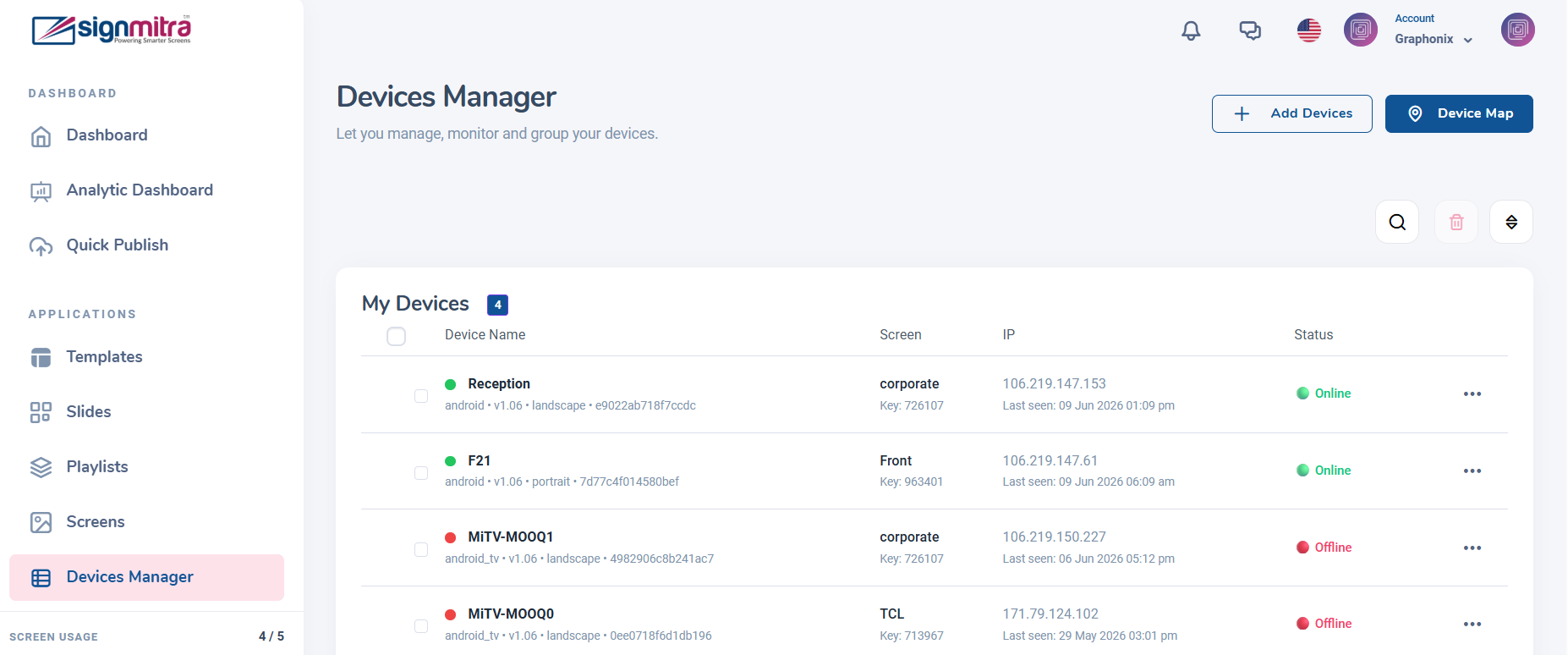
Devices Manager page with list of paired devices
Step 2: View device details
Each device card shows name, connected screen, status, last heartbeat, and app version.
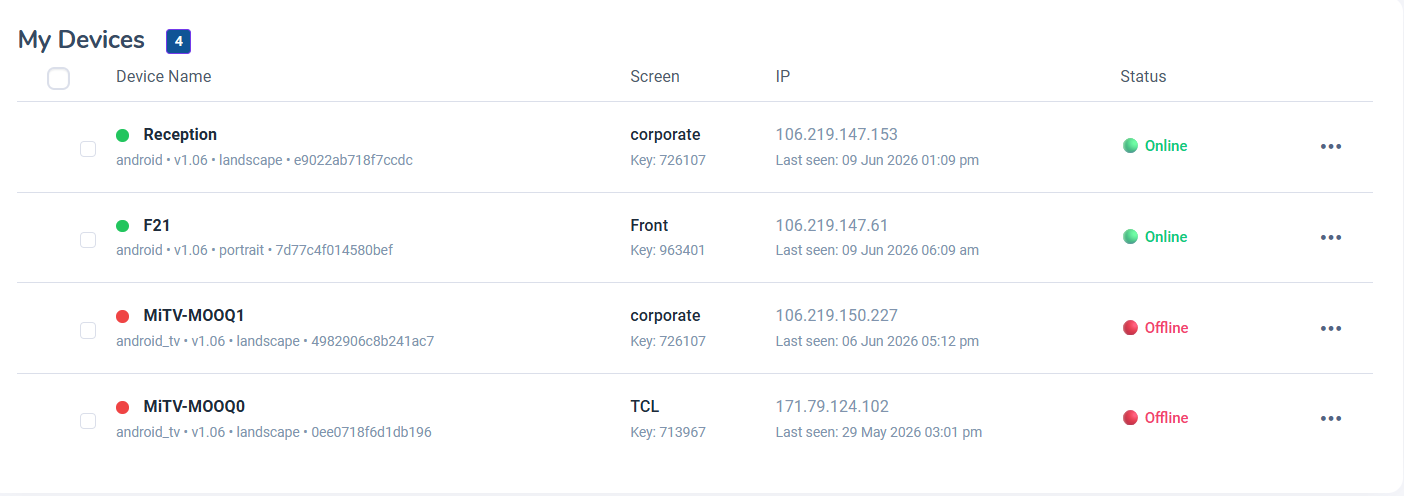
Device card with status details
Step 3: Device actions
Click a device to access actions: Force Sync, Restart, Unpair.
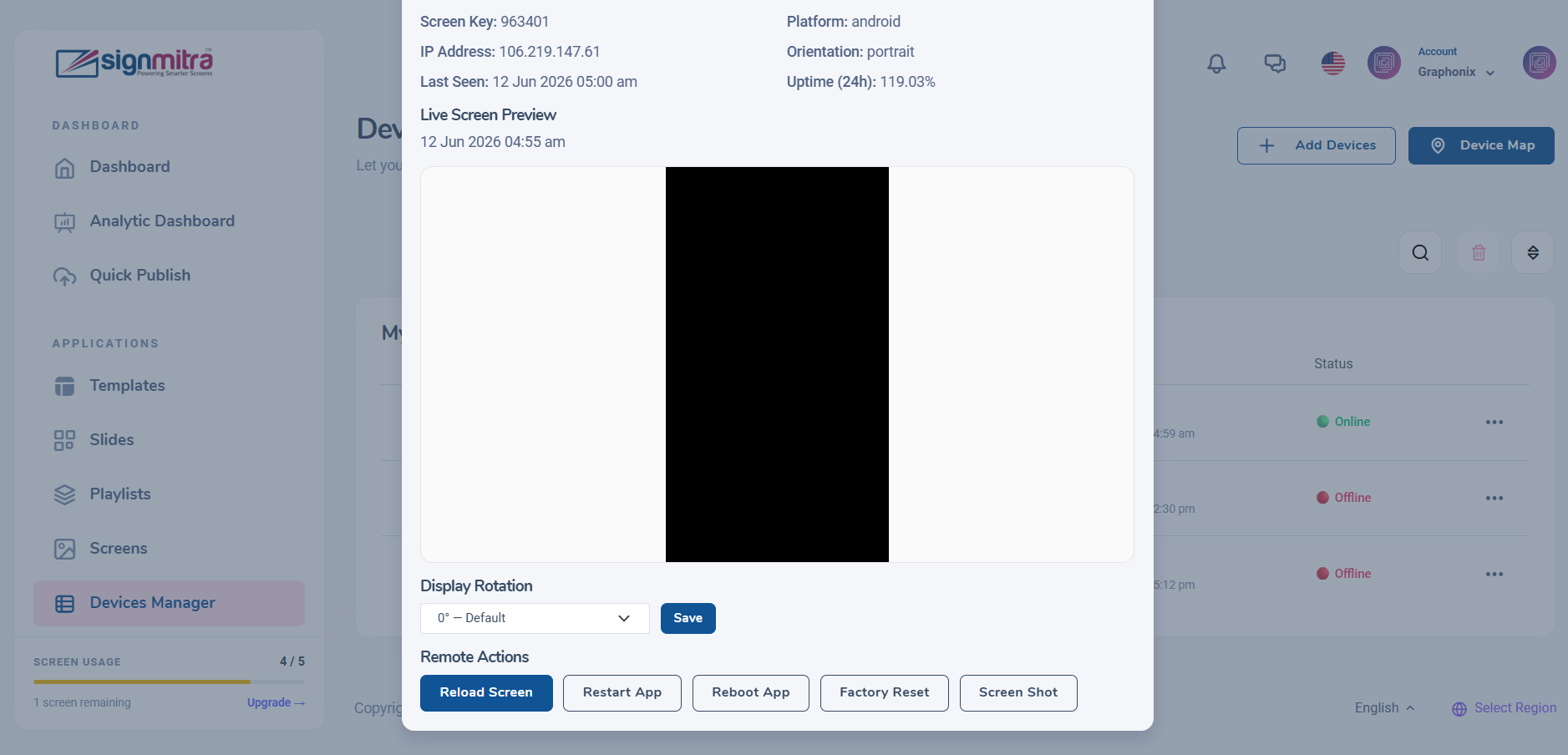
Device action buttons
Step 4: Pair new device
Click "Pair Device" to connect a new Android TV or Fire TV player.
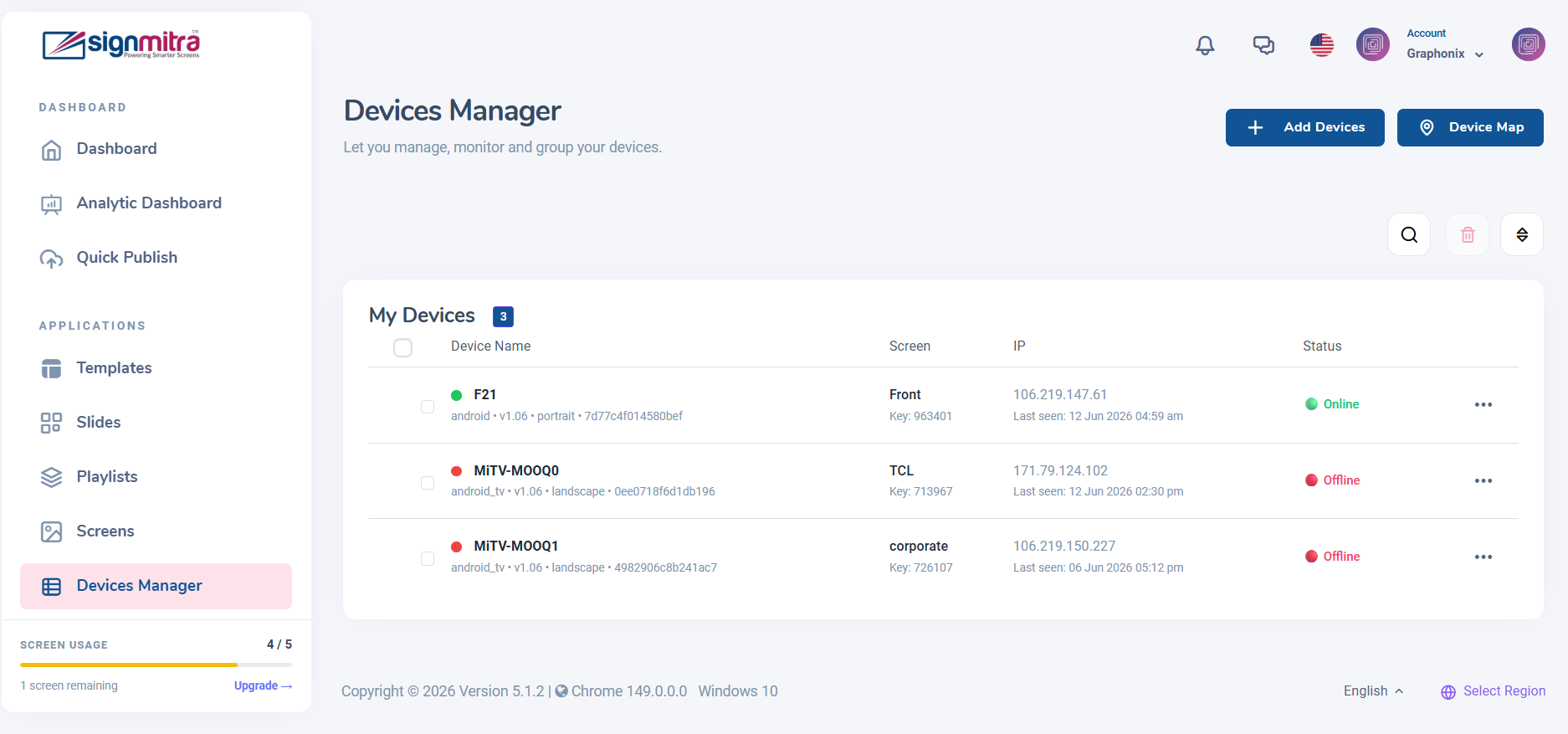
Pair device dialog