Help Center
Editor Overview

Overview
The Signmitra Editor is a powerful visual design tool for creating slide content.
When you create or edit a slide, the editor opens with:
Left Panel: Element library
• Images – Upload or choose from media library
• Text – Add headlines, body text, captions
• Shapes – Rectangles, circles, lines
• Widgets – Clock, weather, ticker, slideshow, RSS, QR code
• Backgrounds – Solid colors, gradients, images
Center: Canvas area
• Drag and drop elements
• Resize and position with handles
• Snap-to-grid alignment
Right Panel: Properties
• Size, position, rotation
• Font, color, alignment for text
• Opacity and layer order
• Animation settings
Top Toolbar:
• Undo / Redo
• Save
• Preview
• Canvas size settings
• Zoom controls
When you create or edit a slide, the editor opens with:
Left Panel: Element library
• Images – Upload or choose from media library
• Text – Add headlines, body text, captions
• Shapes – Rectangles, circles, lines
• Widgets – Clock, weather, ticker, slideshow, RSS, QR code
• Backgrounds – Solid colors, gradients, images
Center: Canvas area
• Drag and drop elements
• Resize and position with handles
• Snap-to-grid alignment
Right Panel: Properties
• Size, position, rotation
• Font, color, alignment for text
• Opacity and layer order
• Animation settings
Top Toolbar:
• Undo / Redo
• Save
• Preview
• Canvas size settings
• Zoom controls
Step by Step Guide
Step 1: Open the editor
Create or edit a slide to open the visual editor.
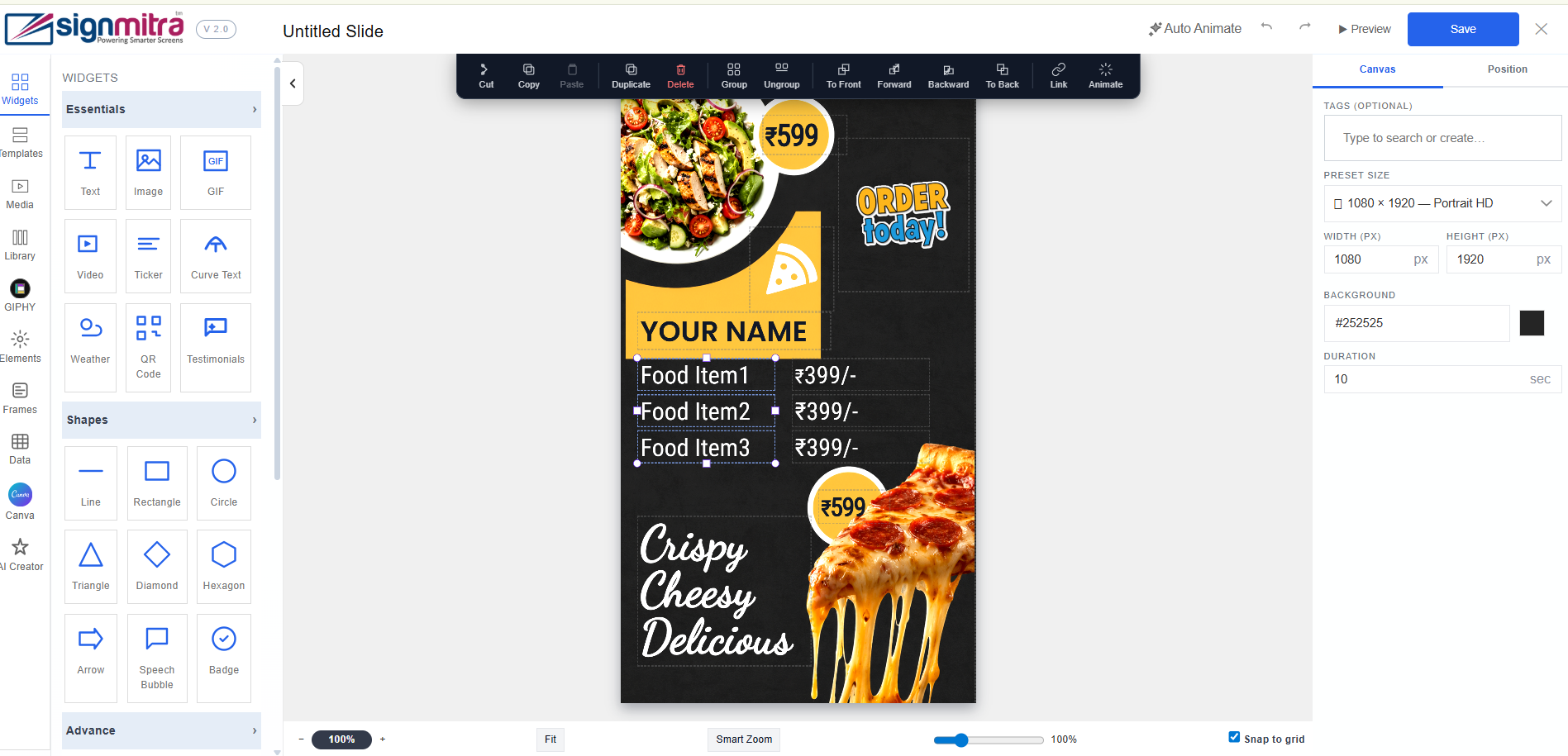
Editor opening with full interface
Step 2: Left panel - elements
Browse the element library: Images, Text, Shapes, Widgets, Backgrounds.
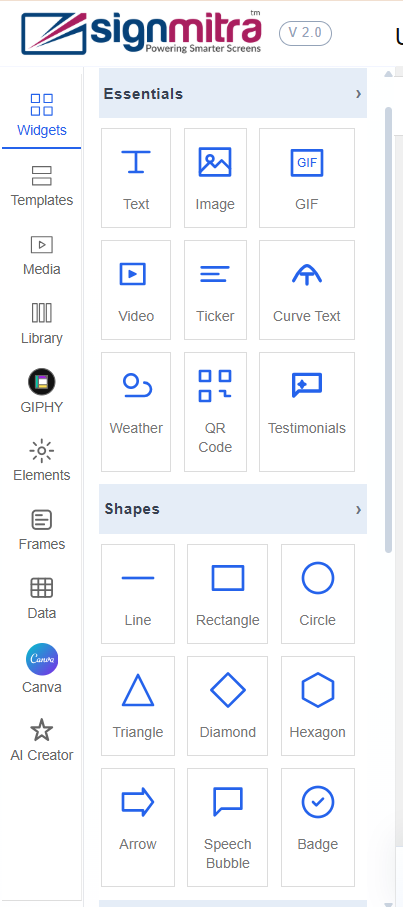
Left panel showing element categories
Step 3: Canvas area
The center area is your design canvas. Drag and drop elements here.
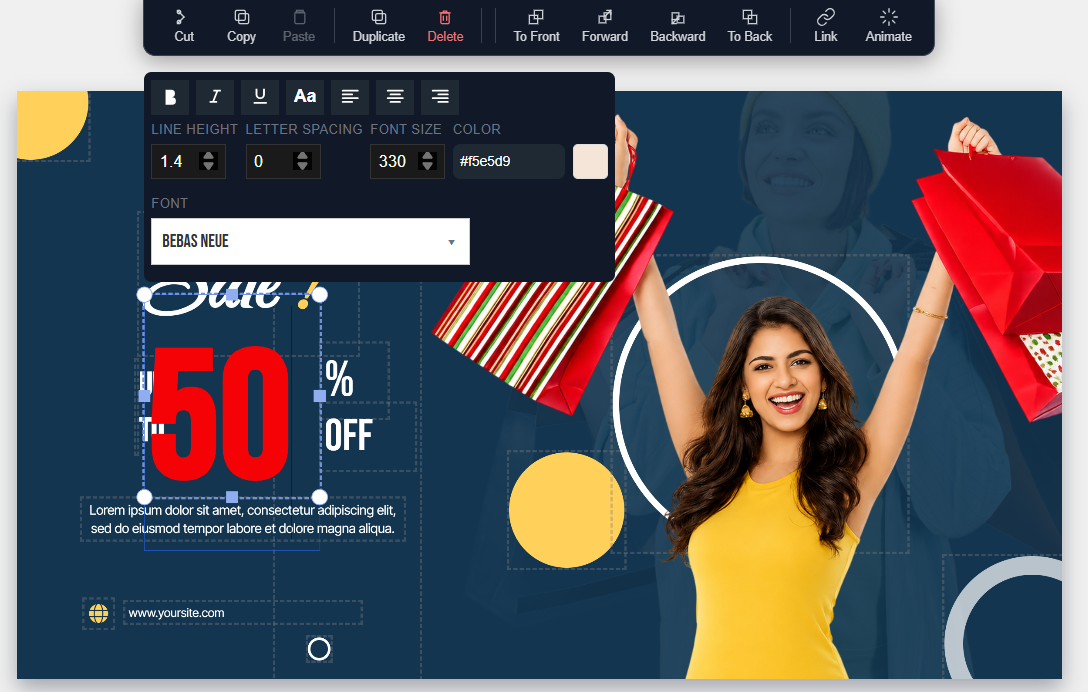
Canvas area with grid and elements
Step 4: Right panel - properties
Select any element to see its properties: size, position, color, font, opacity.
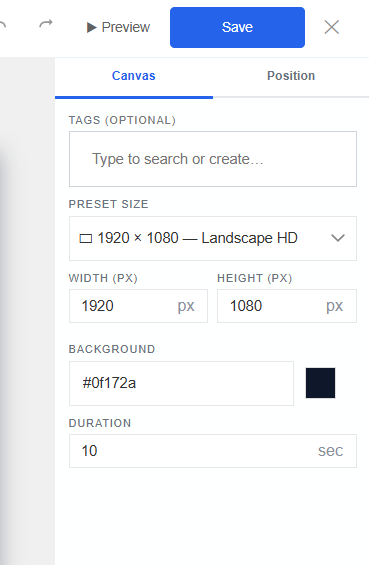
Right panel showing element properties
Step 5: Top toolbar
Use the toolbar for Undo, Redo, Save, Preview, Zoom, and Canvas settings.
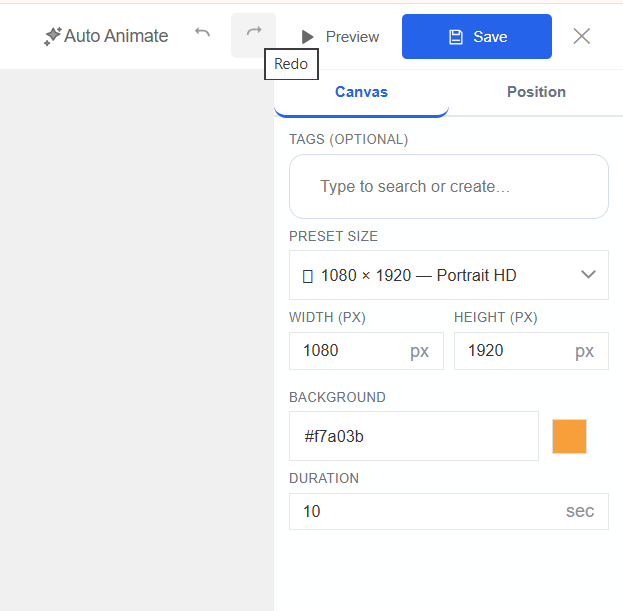
Top toolbar with all action buttons
Frequently Asked Questions
Can I undo changes in the editor?
Yes, use Ctrl+Z (Cmd+Z on Mac) or click the Undo button in the toolbar.
Does the editor support custom fonts?
Yes, the editor includes a library of fonts. Custom font uploads depend on your plan.