Help Center
Support Chats

Overview
Use the support chat for quick back-and-forth communication.
Access: Click the chat icon (speech bubble) in the top header bar
From the dropdown:
• View recent chat conversations
• See unread message indicators
• Click a conversation to open it
• Click "View Queue" to see all conversations
Support chats are tied to your support tickets — each ticket can become a chat thread.
Access: Click the chat icon (speech bubble) in the top header bar
From the dropdown:
• View recent chat conversations
• See unread message indicators
• Click a conversation to open it
• Click "View Queue" to see all conversations
Support chats are tied to your support tickets — each ticket can become a chat thread.
Step by Step Guide
Step 1: Click chat icon
Click the speech bubble icon in the top header bar.
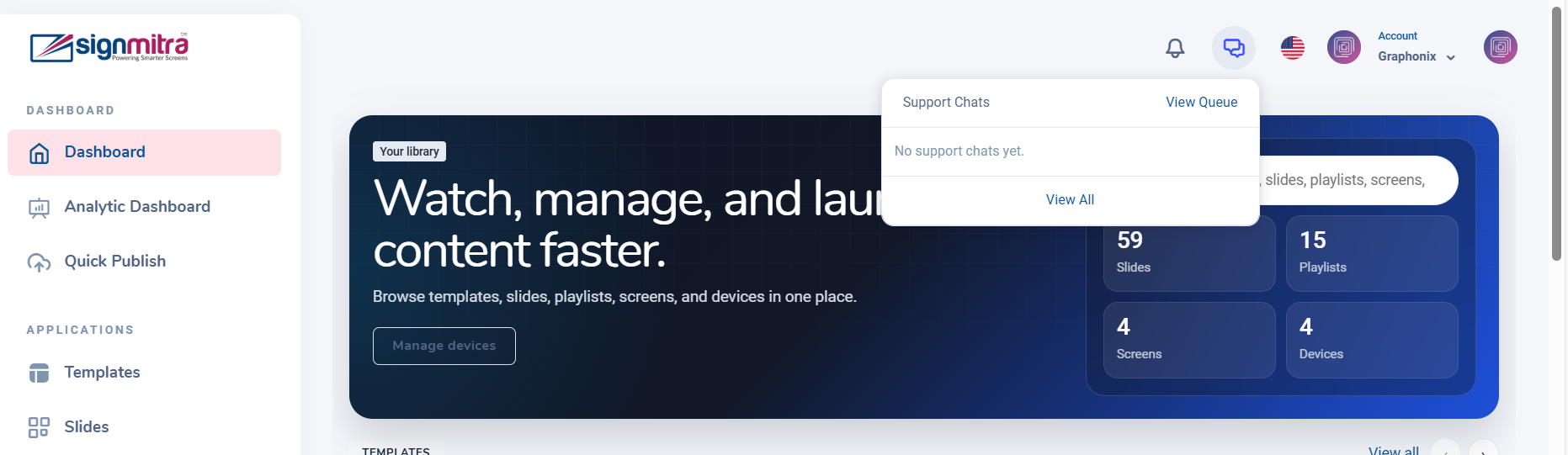
Support chat icon in header
Step 2: View chat conversations
Dropdown shows recent conversations with unread indicators.
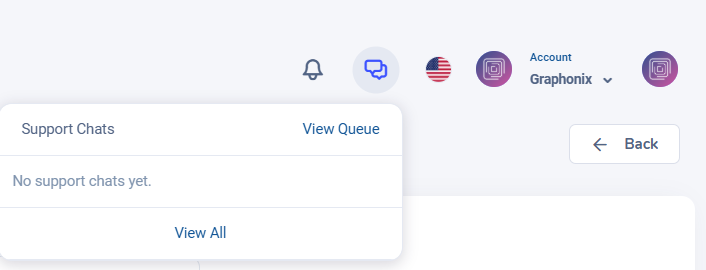
Chat dropdown with conversations
Step 3: Open a conversation
Click a chat to open the full conversation view.
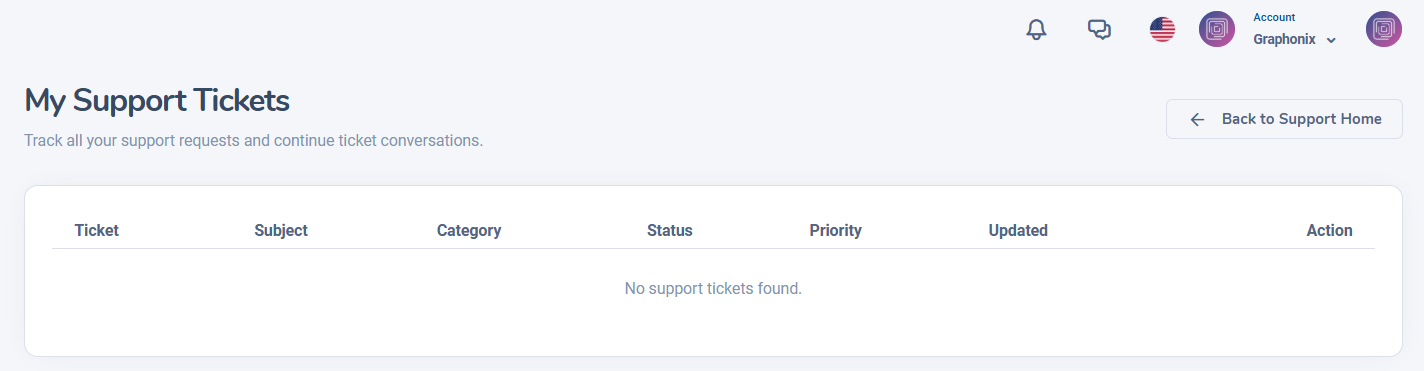
Chat conversation thread
Step 4: View all chats
Click "View Queue" to see all support conversations.
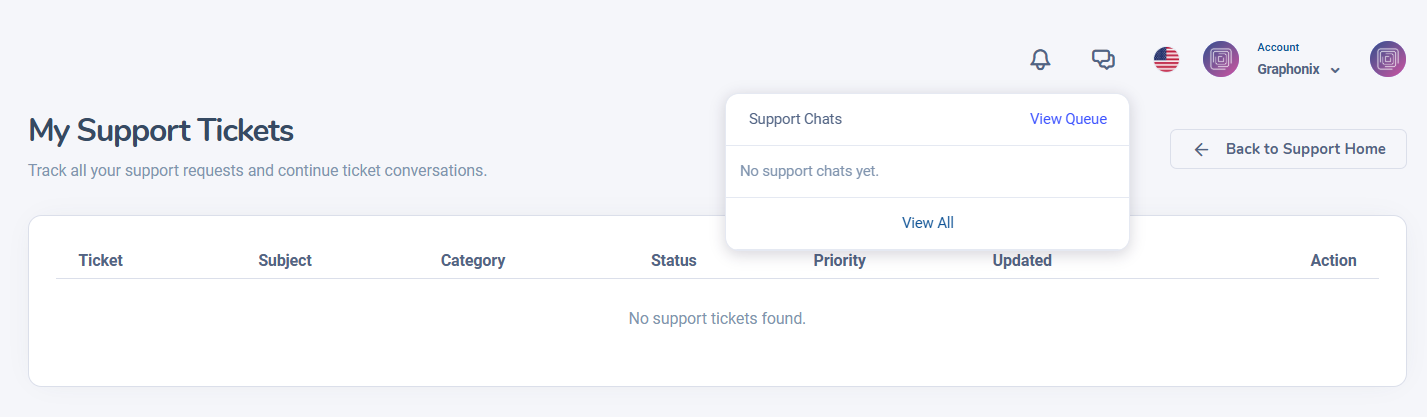
Full support chat queue page