Help Center
View Your Subscription

Overview
View your subscription details from the dashboard.
Steps:
1. Click "Subscriptions" in the sidebar, OR
2. Go to Profile dropdown → "Account Setting"
You will see:
• Current plan name and tier
• Number of screens included
• Storage quota and usage
• Subscription start and expiry dates
• Billing cycle (monthly or annual)
• Payment status
From this page you can upgrade, downgrade, or renew your subscription.
Steps:
1. Click "Subscriptions" in the sidebar, OR
2. Go to Profile dropdown → "Account Setting"
You will see:
• Current plan name and tier
• Number of screens included
• Storage quota and usage
• Subscription start and expiry dates
• Billing cycle (monthly or annual)
• Payment status
From this page you can upgrade, downgrade, or renew your subscription.
Step by Step Guide
Step 1: Open Subscriptions page
Click "Subscription" in the sidebar or "Account Setting" from profile dropdown.
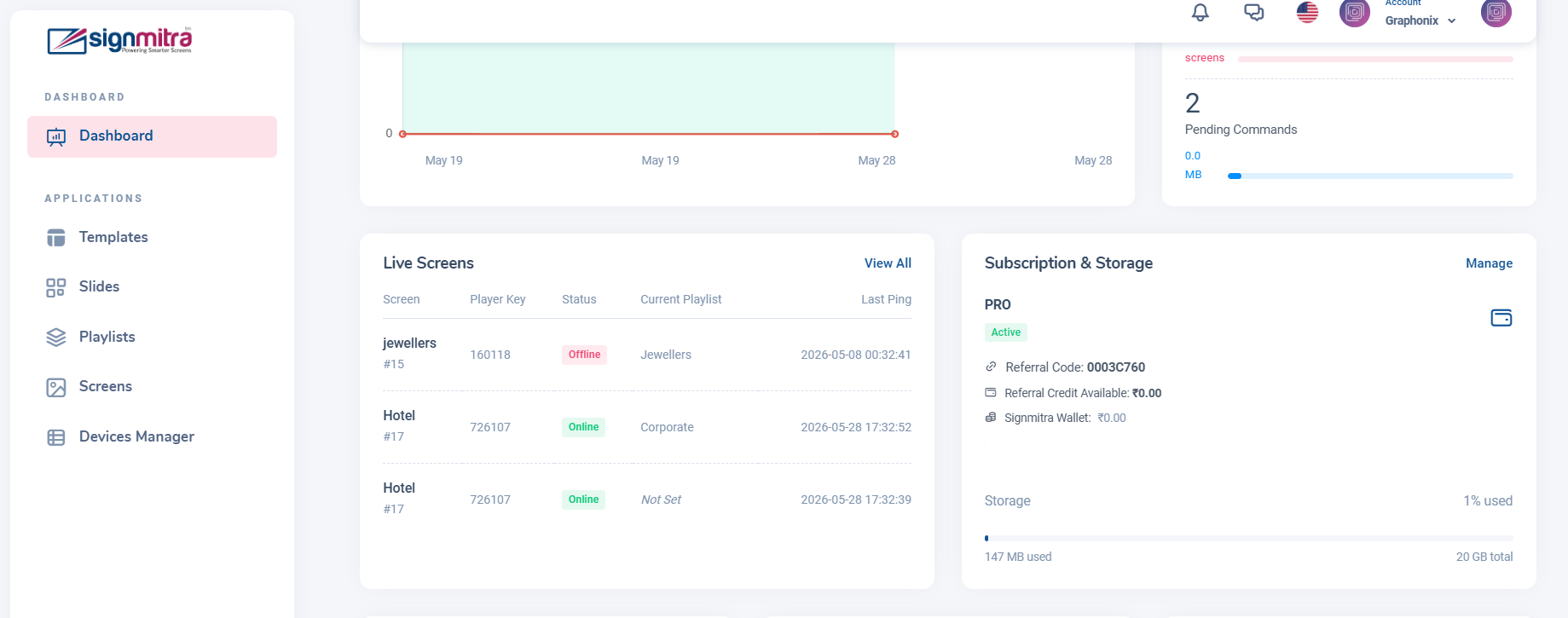
Subscription page showing current plan
Step 2: View plan details
See your plan name, screens included, storage quota, and billing dates.
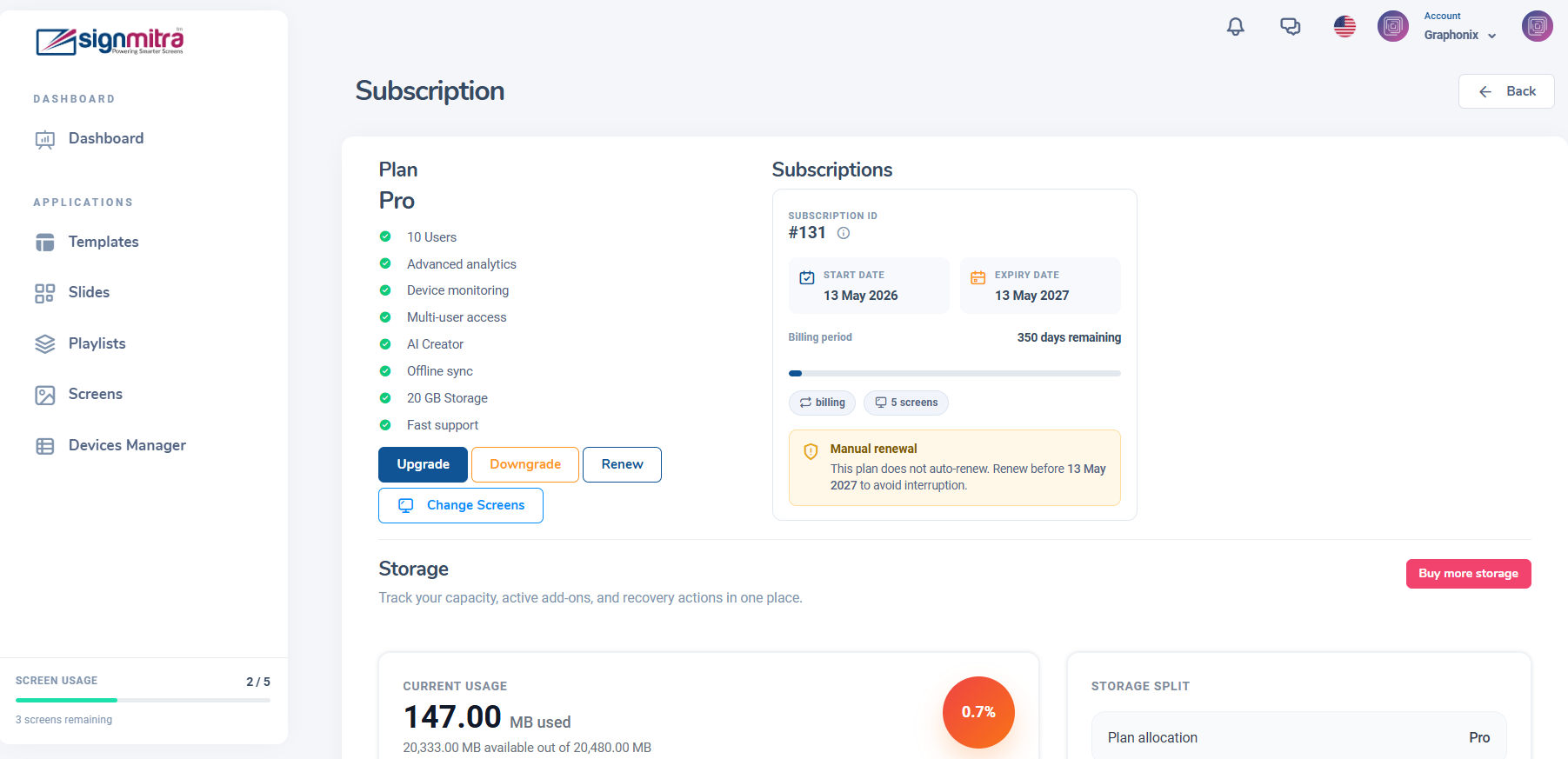
Plan details card with all information
Step 3: Check usage
Review screens used vs allowed, and storage used vs quota.
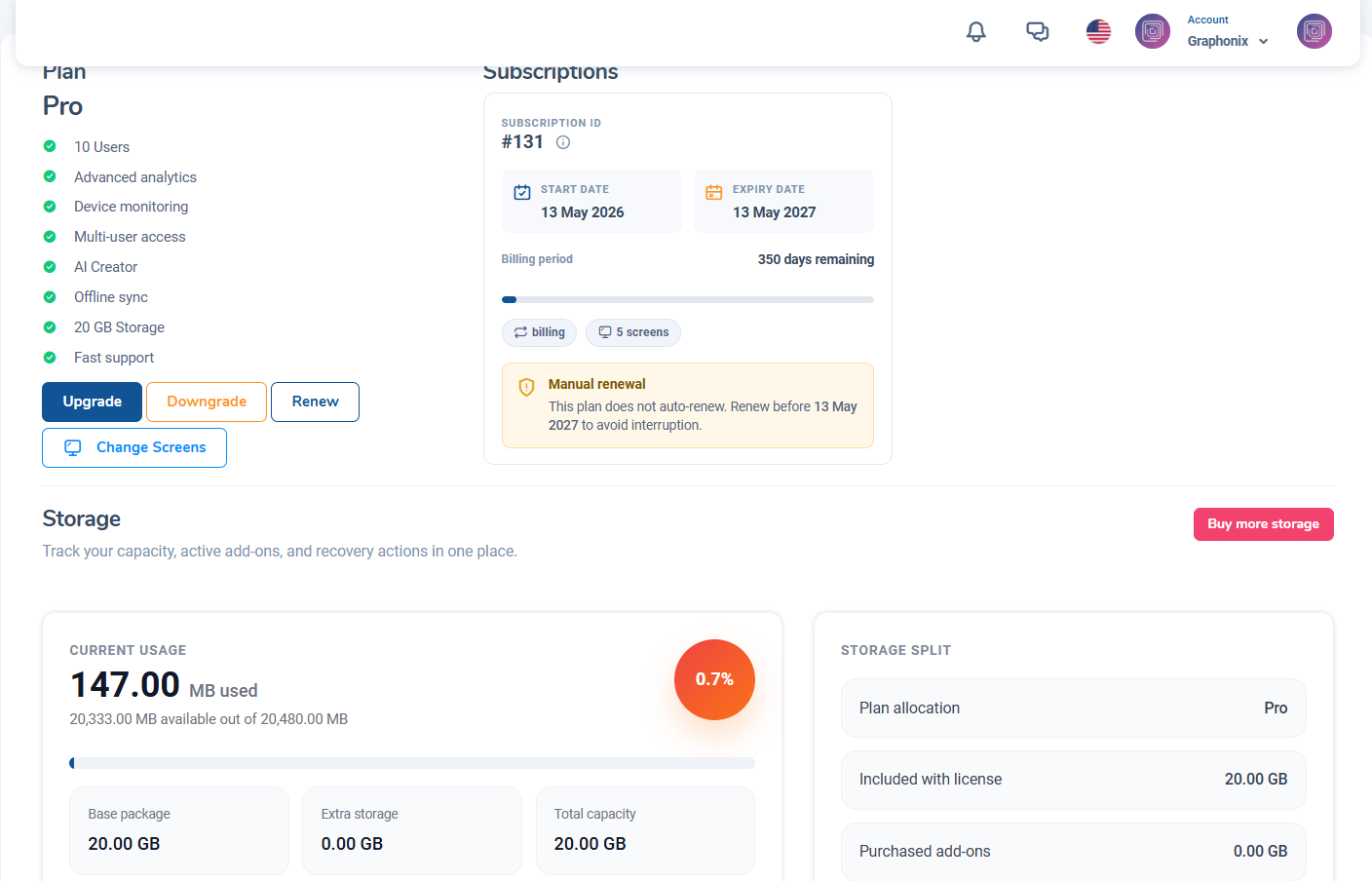
Usage meters for screens and storage
Step 4: Manage subscription
Use the Upgrade, Downgrade, or Renew buttons as needed.
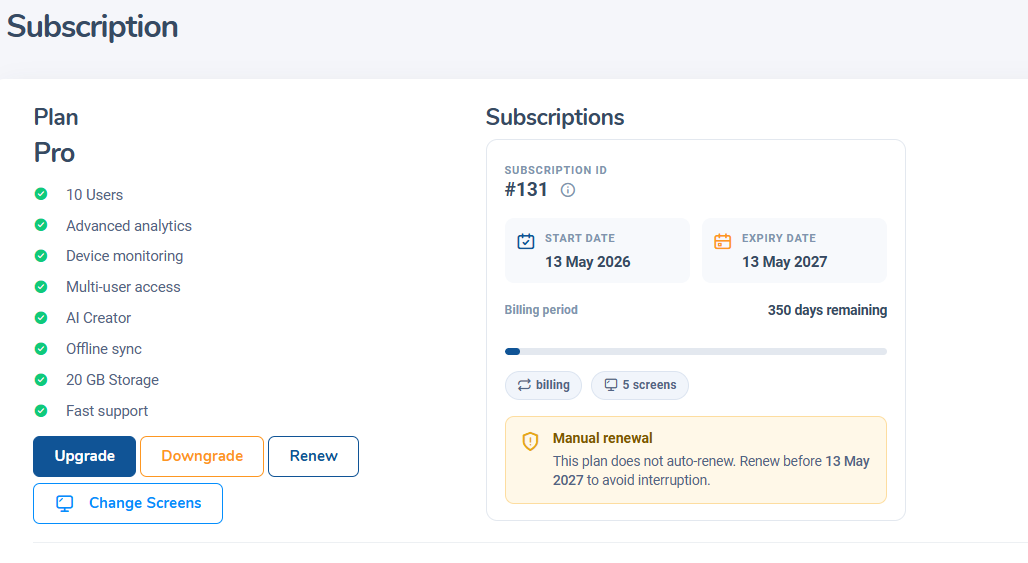
Subscription action buttons
Frequently Asked Questions
Where can I see my subscription expiry date?
Go to Subscriptions in the sidebar. The expiry date is shown in the plan details card.